
AI CONNECTIONS
Stop re-keying. Run intake from Claude and ChatGPT.
Ask your AI to look up a client, start a RiskProfile, or update one. It happens in RiskAdvisor.
We’ll run one intake live, from the chat to the RiskProfile.
Already a customer? Turn on AI ConnectionsThe policy documents had everything.
Someone typed it in anyway.
A new client sends policy documents. Someone on your team reads them, then keys every name, driver, and vehicle into your system before anyone can quote.
If your team uses Claude or ChatGPT, the AI can read that page. But it sits next to your intake system, not inside it. So a person still retypes what the AI already read.
That retyping is where quotes wait. It’s where typos get in. And how well it’s done depends on who is at the desk that day.
AI Connections puts your AI inside RiskAdvisor, so the client goes in once and your team reviews it instead of rebuilding it.
Today
Policy documents
AI reads it
A person retypes it
Then someone quotes
With AI Connections
Policy documents
AI reads it
If you allow it, AI creates the client and RiskProfile in RiskAdvisor
Your team reviews it and quotes
Three steps.
Your team stays in charge of the last one.
Ask in the chat
Ask Claude or ChatGPT about a client or a document.
Your AI works in RiskAdvisor
Your AI looks up records, and if you allow it, creates or updates them in RiskAdvisor. Every step is visible.
Your team reviews
Open the submission from the link in the chat, check it, and quote.
1 of 3
Start intake from what you have, not the keyboard
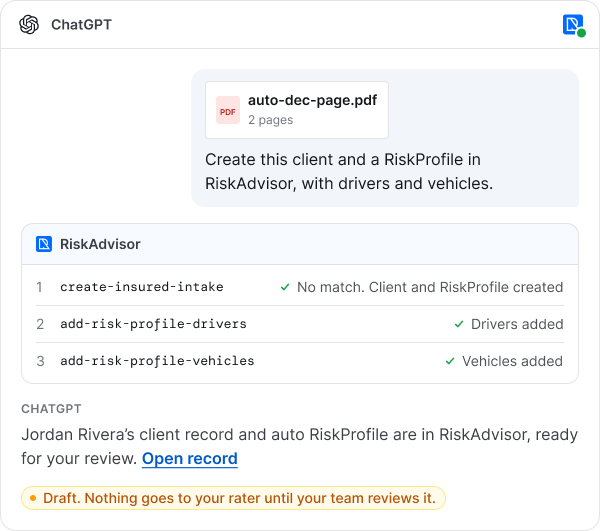
When your AI has the policy documents, ask it to set up the client. If you allow it, your AI creates the client and the RiskProfile in RiskAdvisor, then adds the drivers and vehicles.
Every intake lands in the same RiskProfile fields, no matter who ran it. Your team checks the record instead of building it from scratch.
TRY ASKING
“Here are auto policy documents for a new client. Create the client and a RiskProfile in RiskAdvisor, with the drivers and vehicles.”
2 of 3
Fix a client record without hunting for it
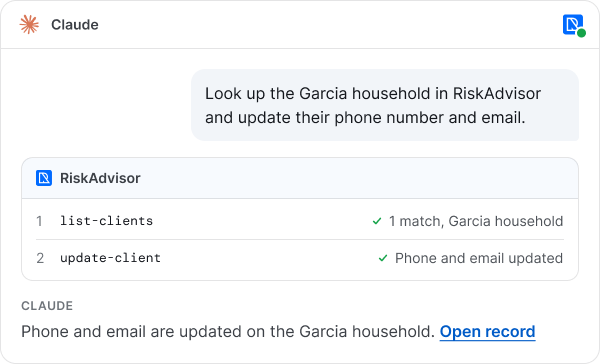
A client calls with a new phone number. Ask your AI to find them and make the change. It looks up the client in RiskAdvisor and, if you allow it, updates the record.
No digging through screens. No sticky note that never makes it into the file.
TRY ASKING
“Look up the Garcia household in RiskAdvisor and update their phone number and email.”
3 of 3
Keep what the client said in the file
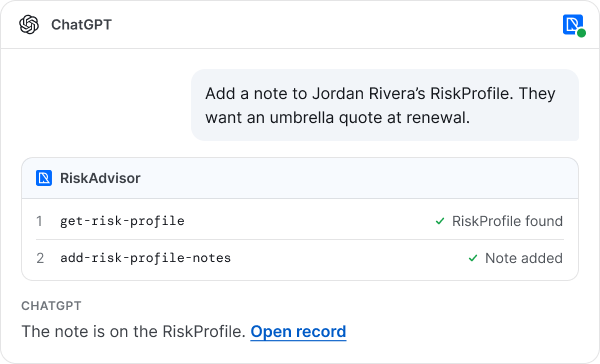
The details that come up on a call belong on the RiskProfile, not in someone’s head. If you allow it, your AI can add a note, and it’s there for the next person who opens the file.
Details from a document go into notes on the RiskProfile too, so your team sees them when they review.
TRY ASKING
“Add a note to this client’s RiskProfile. They want an umbrella quote at renewal.”
“15 to 20 minutes on average, if I’m doing a home and an auto intake … even if they send me their declarations page.”
An agency customer, on keying in one new client by hand
What your AI can do in RiskAdvisor
Your AI works with the same records your team does. An owner or admin decides what each AI tool can do, including whether it can delete.
Look up
Your AI can find clients and prospects, RiskProfiles, drivers, vehicles, policies, call-in quotes, and your teams.
Create and add
Your AI can create new clients and RiskProfiles. It can add drivers, vehicles, and notes to an existing RiskProfile, or copy a RiskProfile to start from.
Update
If you allow it, your AI can change client details and RiskProfiles.
You decide who connects. You can shut it off anytime.
AI Connections stays off until an owner or admin turns it on.
They choose who can connect: admins only, specific users, or everyone.
For each AI tool, they choose read only, or read and write.
Each person approves the connection with their own RiskAdvisor sign-in.
Anyone can disconnect their own AI tool.
An owner or admin can revoke any connection, block a user, or turn the whole feature off at once.
Questions agency owners ask
Book a demoGETTING STARTED
What is RiskAdvisor AI Connections?
RiskAdvisor AI Connections lets the AI tools your agency already uses, like Claude and ChatGPT, work inside RiskAdvisor instead of next to it. Your AI can look up clients from the chat. If an owner or admin allows it, it can also create clients and RiskProfiles from policy documents and update records.
Is AI Connections an MCP server?
Yes. AI Connections is RiskAdvisor’s MCP server. MCP, or Model Context Protocol, is an open standard that lets AI tools like Claude and ChatGPT connect to other software. You don’t need to know how it works. An owner or admin turns it on in Settings, and each person approves access on the RiskAdvisor approval screen.
Which AI tools work with RiskAdvisor?
Claude and ChatGPT both work with RiskAdvisor through AI Connections. Claude Code and other AI tools that support MCP can connect too. Each person connects their own AI tool and approves access on the RiskAdvisor approval screen.
Do I need IT help or code to connect Claude or ChatGPT?
No. You don’t need IT help or code to connect Claude or ChatGPT to RiskAdvisor. An owner or admin turns on AI Connections in Settings, and each person follows the steps on screen and approves access. Claude Code is the one exception, and it uses a single one-line command.
WHAT IT CAN AND CAN’T DO
What can Claude or ChatGPT do in RiskAdvisor?
Claude or ChatGPT can look up clients, RiskProfiles, drivers, vehicles, policies, and call-in quotes in RiskAdvisor. If an owner or admin allows it, your AI can also create clients and RiskProfiles, add drivers, vehicles, and notes, and update client details and RiskProfiles. For example, it can turn policy documents into a draft RiskProfile.
Does AI Connections replace my agency management system or rater?
No. AI Connections works inside RiskAdvisor, your intake system. It does not replace your agency management system or your rater. Your AI creates the client and RiskProfile in RiskAdvisor, and your team reviews and quotes the way they do today.
Can the AI fill in home and coverage fields?
Not as fields today. The AI can’t fill home and coverage fields directly yet. It puts home and coverage details into notes on the RiskProfile, so your team sees them when they review. Drivers, vehicles, and client details do go into their own fields.
What happens if the AI gets something wrong?
If the AI gets something wrong, your team catches it at review, so treat every RiskProfile it creates like a draft. Each result links to the record in RiskAdvisor, so your team can open it, check it, and fix anything before quoting. Nothing goes to your rater until your team reviews it.
Will it collect policy documents from my clients?
No. AI Connections doesn’t collect policy documents from your clients. It helps once you have the documents: your team gives the client’s documents to Claude or ChatGPT, and the AI puts the client, drivers, and vehicles into RiskAdvisor. Getting the client to send the policy documents is still on your agency.
DATA AND CONTROL
Who controls AI access at my agency?
An owner or admin controls AI access at your agency. AI Connections is off until one of them turns it on. They choose who can connect: admins only, specific users, or everyone. Admins only is the default, and they can change it or revoke any connection in Settings at any time.
Can the AI change or delete client records?
The AI can change client records only if an owner or admin allows it. For each AI tool, they choose read only, or read and write. Delete is off until an owner or admin turns it on. An owner or admin decides what each AI tool can do, including whether it can delete.
What client data can Claude or ChatGPT see in RiskAdvisor?
Claude or ChatGPT can only see the agency team the person is working in. That covers clients and prospects, RiskProfiles, drivers, vehicles, policies, and quotes. Nothing connects until the person approves access on the RiskAdvisor approval screen, and the owner or admin’s read only or read and write setting still applies.
Can I turn off AI access or disconnect a user?
Yes. You can turn off AI access or disconnect a user at any time. Anyone can disconnect their own AI tool. An owner or admin can revoke any connection, block a user from reconnecting, or turn the feature off, which disconnects everyone. If they tighten access, any connection above the new limit is disconnected.
Where does client data go when my team uses Claude or ChatGPT?
Inside RiskAdvisor, your AI can only read or write within the access your owner or admin set. A document your team gives Claude or ChatGPT goes to that AI company under your agency’s own account.
How can I see AI Connections run a real intake?
Book a 30-minute demo to see AI Connections run a real intake. We’ll take policy documents from the chat to a RiskProfile in RiskAdvisor, live.